Listing feature guide

Publish on HaaBaan in 5 clear steps

Follow real product screens from property type and map location to photos, pricing, review, and publishing, with a practical tip at every step.

Flow
5 steps
Listing cost
30 Coins
Claim free Coins every month
Saving
Automatic drafts

Real HaaBaan screens

Follow the flow step by step

The screens below come from the product’s safe demo mode, so they contain no real user account or listing data.

1

Choose the purpose and property type

Start with sale or rent, then select the property type so the form can show the fields relevant to your listing.

Choose carefully: price fields, listing details, and how people discover the property depend on this selection.
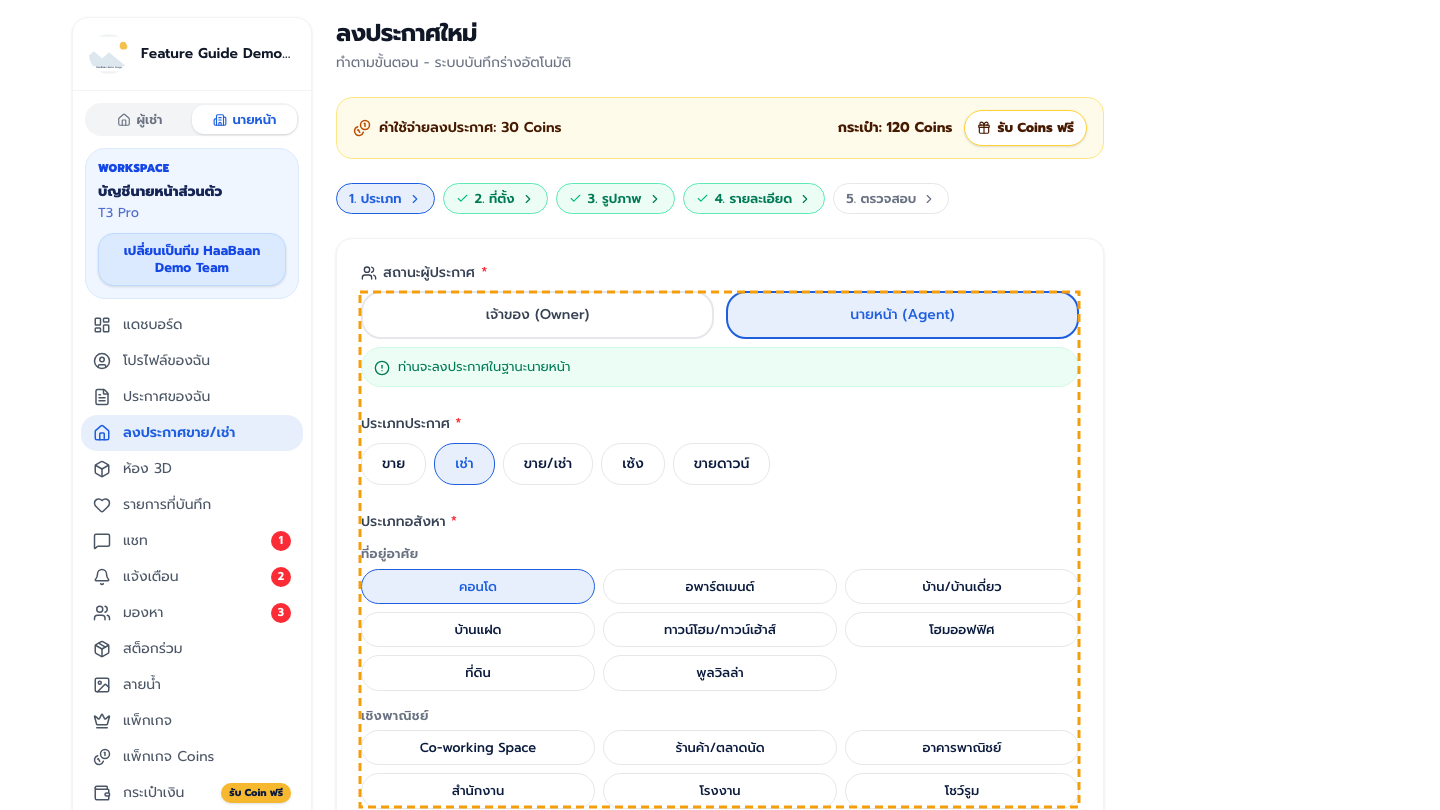
Overview of the HaaBaan listing steps
2

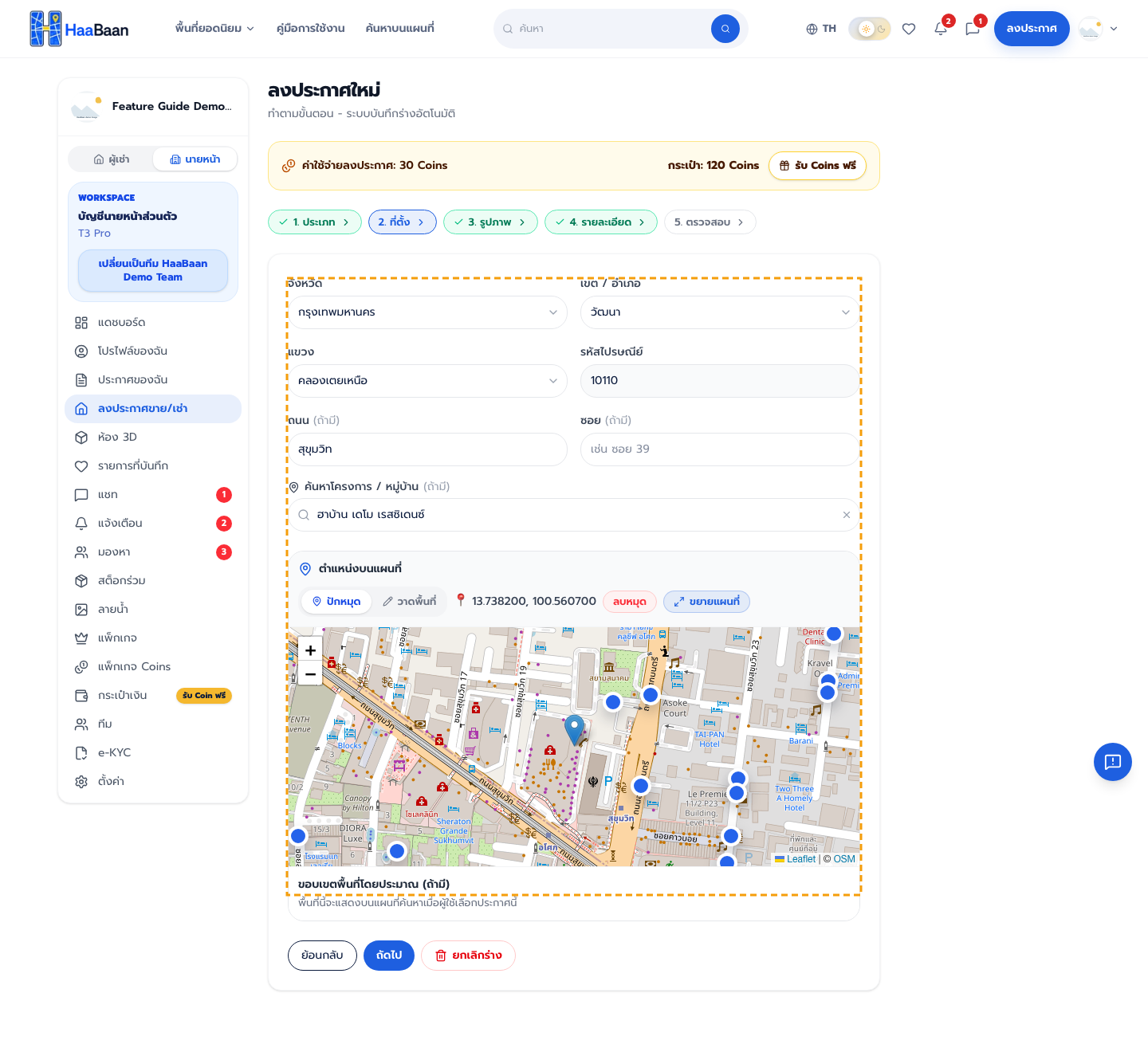
Pin the location and enter the address

Search for the project or move the pin to the correct position, then confirm the province, district, road, and transport details.

An accurate pin helps the listing appear in map searches and searches near important places.
HaaBaan listing location and address screen
3

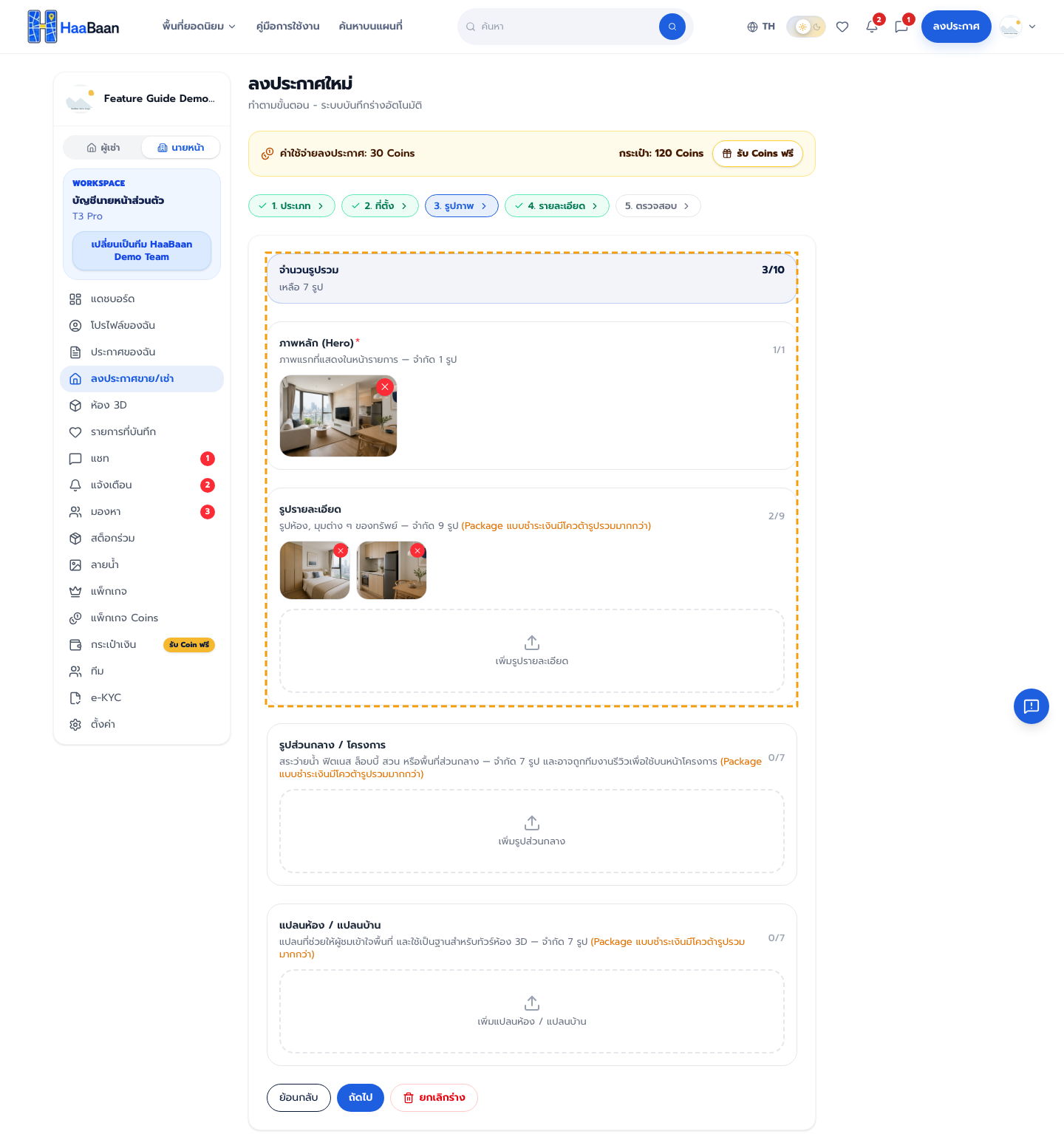
Add photos and choose a cover

Upload bright, clear photos and order them so buyers or tenants can understand the space. Lead with your strongest overview.

Avoid duplicates, personal data, unauthorized watermarks, and images that do not represent the actual property.
HaaBaan photo upload and cover selection screen
4

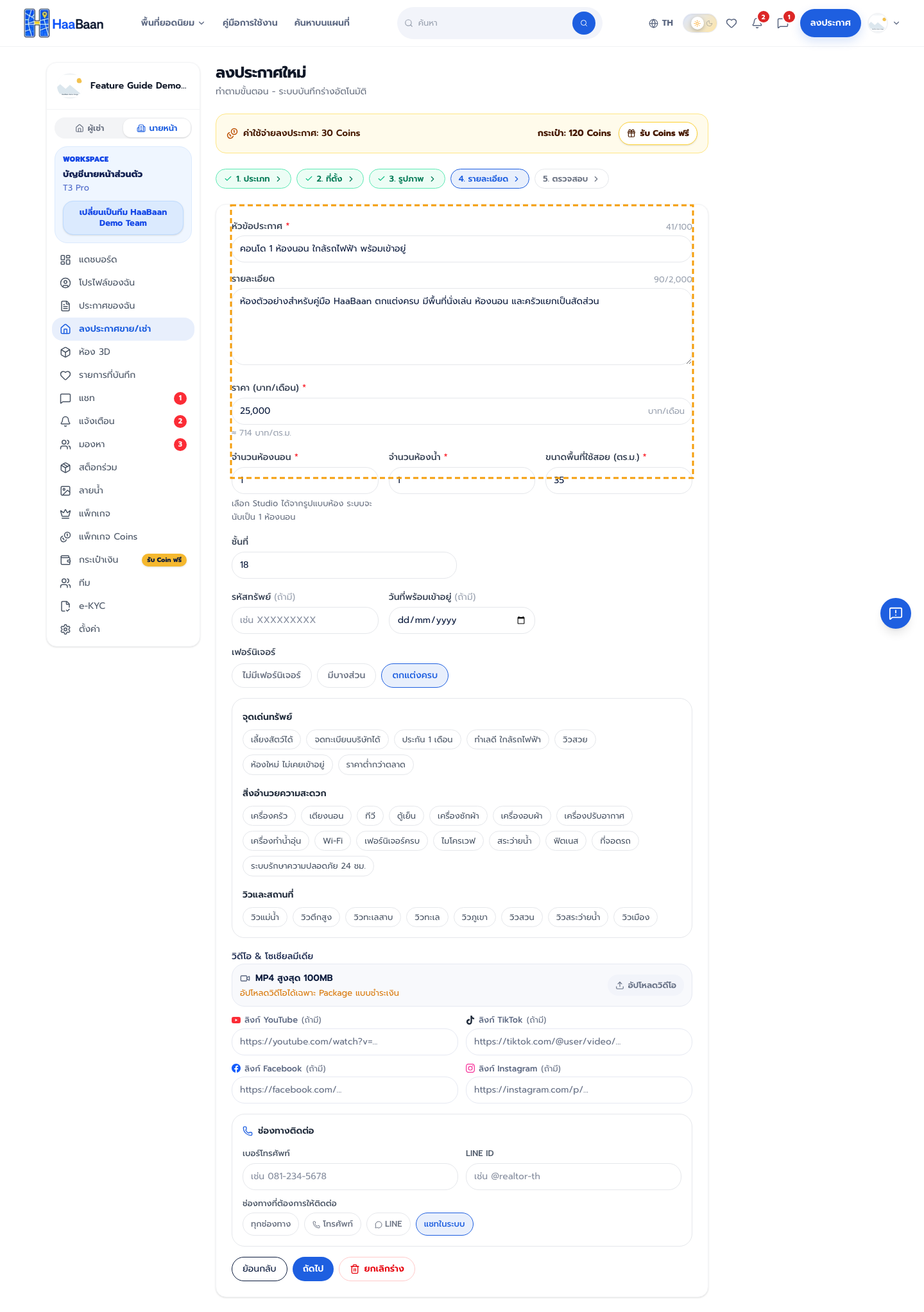
Add price and property details

Complete the price, size, bedrooms, bathrooms, furnishings, facilities, contact details, and important terms.

Write a title that is immediately clear and state important fees or conditions honestly.
HaaBaan price and listing details screen
5

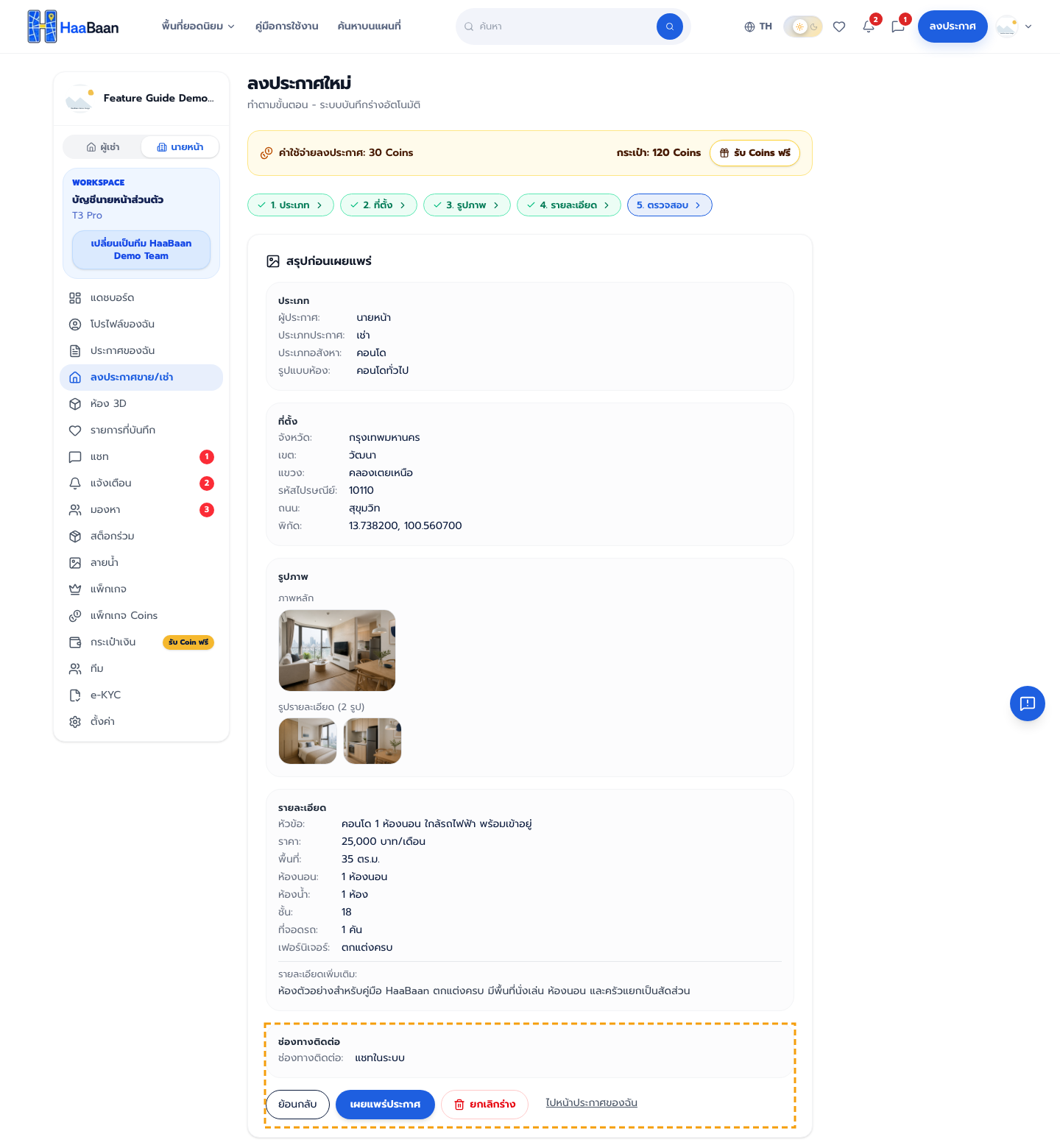
Review and publish

Read everything once more, preview the listing, confirm the Coins charge, and publish when the information is correct.

Drafts save automatically, so you can leave and continue later before publishing.
HaaBaan listing review and publish screen

Frequently asked questions

Is publishing free?

A standard publication currently shows a 30 Coins charge at review. Check the latest balance and terms before confirming.

Can I leave before finishing?

Yes. The form saves drafts automatically, and you can continue from My Listings.

Can I use photos from elsewhere?

Only use photos you created or have permission to publish, and check that no one else’s personal information appears in them.

Can I edit after publishing?

Yes. You can edit details and manage status from My Listings; some changes may require another review.

Ready to create your first listing?

Prepare the information and photos, then follow the five steps. Your draft will save along the way.